Local SRT Streaming Setup: IRL Pro, Moblin, OBS

This is a simple internal (wired/wireless LAN) SRT streaming setup between a smart phone (Android or iPhone) and OBS (PC or Mac) which is useful for using them as camera sources without having to rely on something like VDO.ninja. While there is nothing wrong with VDO.ninja per se (it utilizes WebRTC), the initial setup does require going through their site (after that portion is established, connections are peer-to-peer).
By comparison, this setup is under your complete control internally from start to finish and is also useful for setting up an actual OBS relay for IRL streaming (where there are more privacy and security concerns that could expose ones personal information and data).
The concept of this SRT relay is pretty simple and follows a conversational model with a caller/sender (the streaming phone) and the listener/receiver (OBS).
OBS
Step 1: Create an (or use an existing) scene. In this example, the scene is called Live-IRLPro.
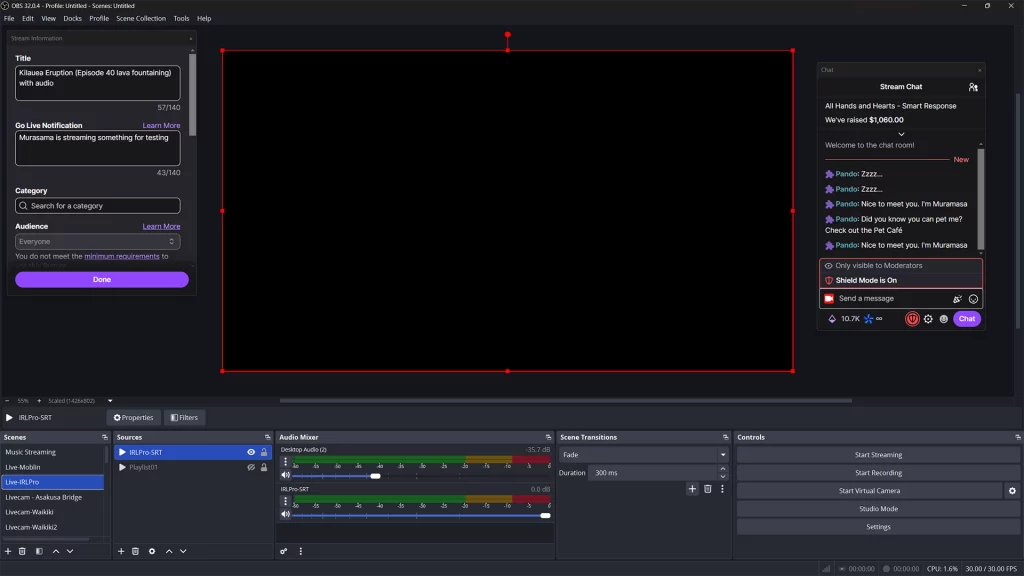
Step 2: Inside this scene (or existing one), create a new Media Source (click the + button and select Media Source) and name it to whatever you want (in this example, it is named IRLPro-SRT).
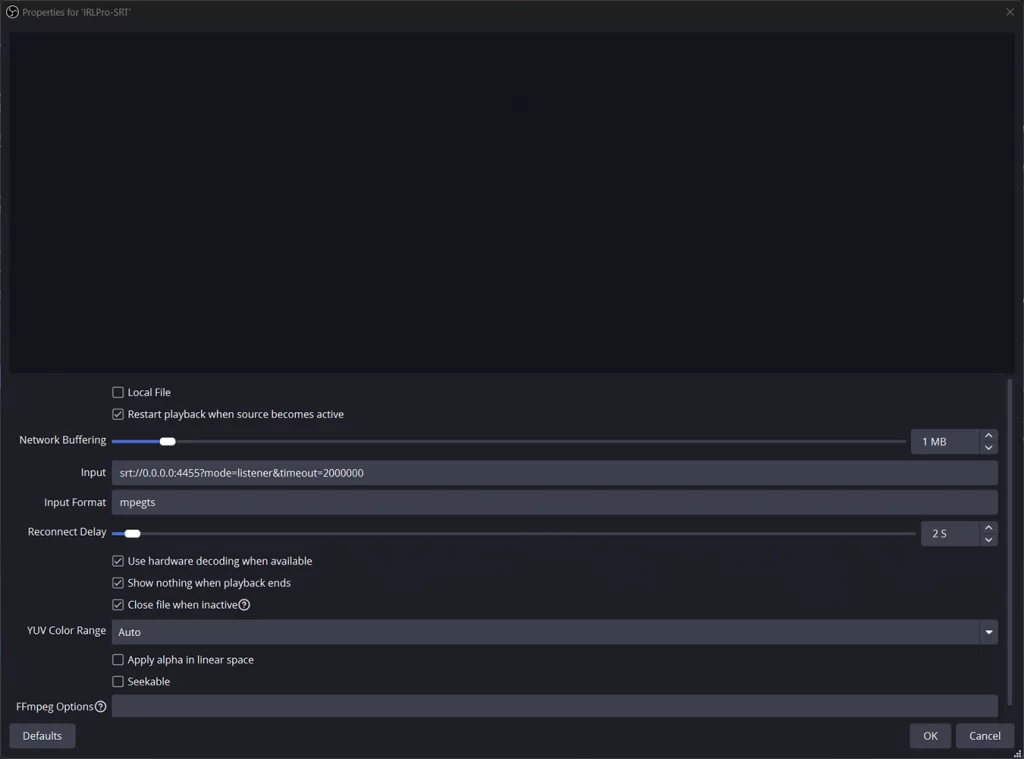
- Uncheck the Local File box and change the Networking Buffer to 1MB.
- In the Input field, add: srt://0.0.0.0:4455?mode=listener&timeout=2000000
- In the Input Format field, add: mpegts
- Change the Reconnect Delay to 2S
- Make sure there is a checkmark in the Use hardware decoding when available, Show nothing when playback ends, and Close file when inactive box
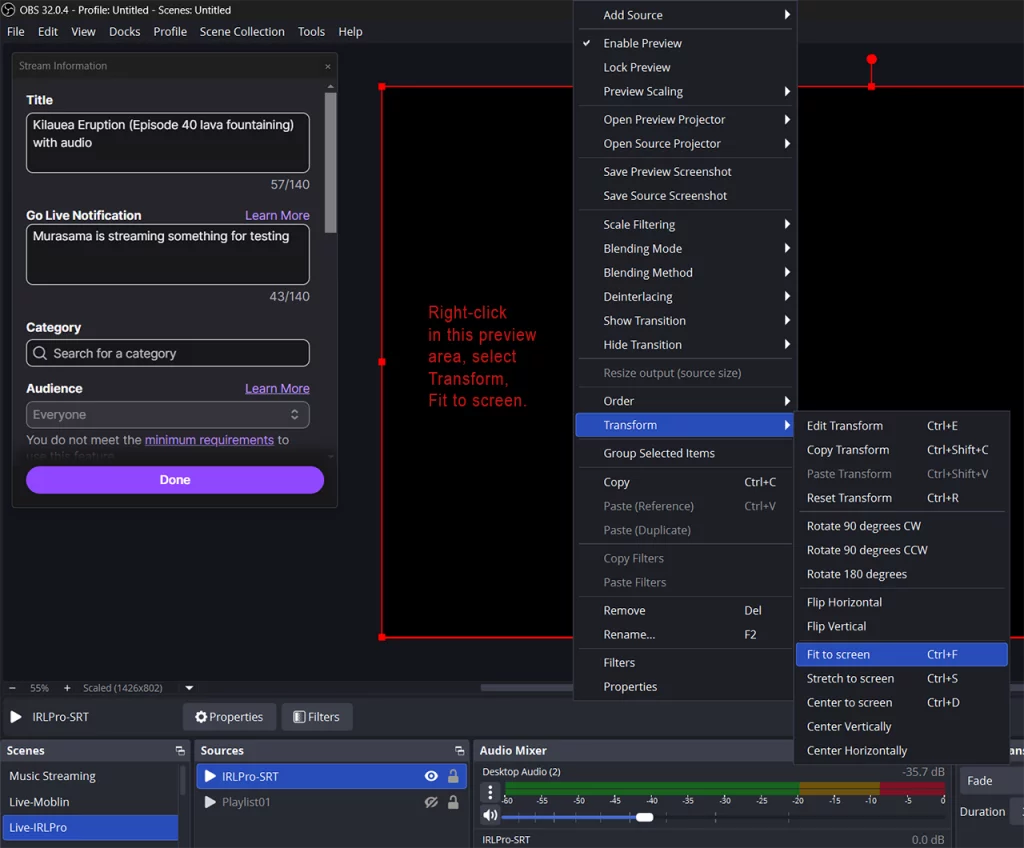
Click Ok to save these settings. Right-click anywhere in the preview, select Transform > Fit to screen. Manually resize as needed by dragging any part of the red border (or using Transform > Edit Transform to manually change the size/position).
Add as many media sources (following step 2) for as many phones that will be used. Each phone that streams will use the first available media source (adjust the layout on the preview screen as needed) unless the actual IP address (internal/local/private) of each phone is specified in the “Input field” above.
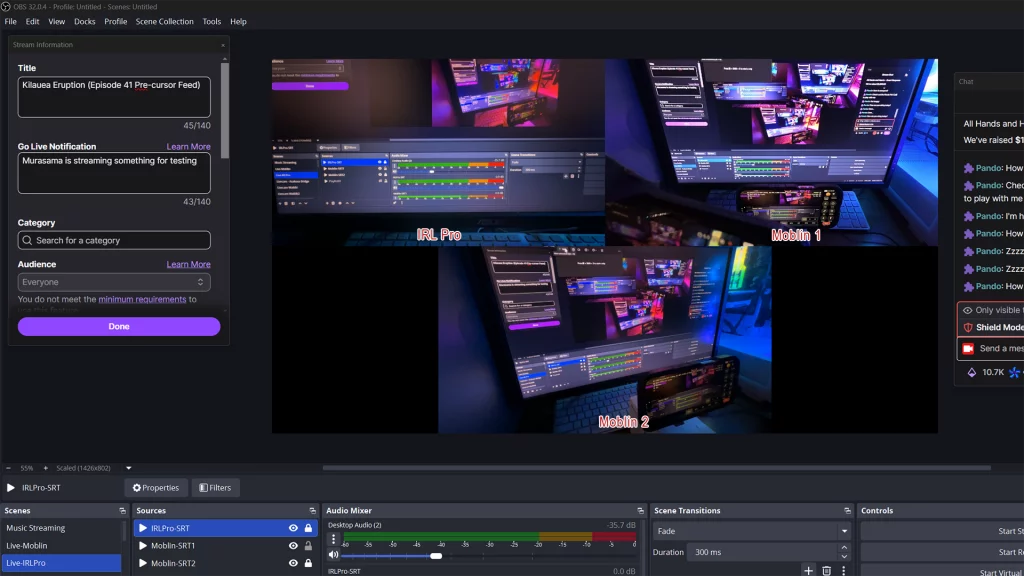
This completes the setup for OBS.
IRL Pro (Android)
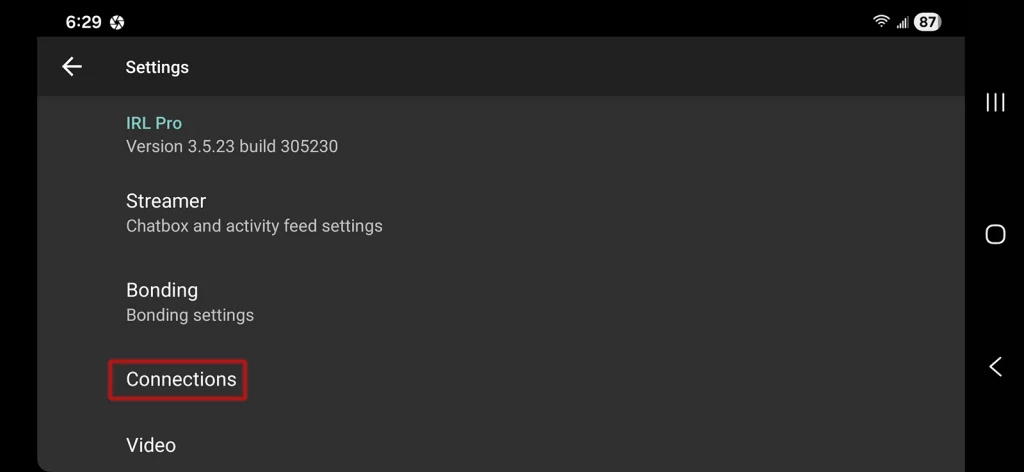
Step 1: Go into Settings (tap the gear icon on the upper left side) and tap Connections
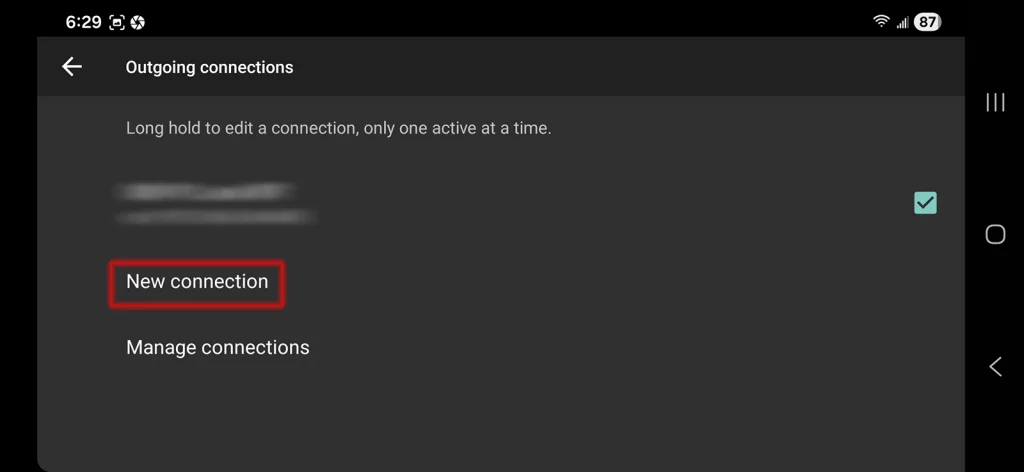
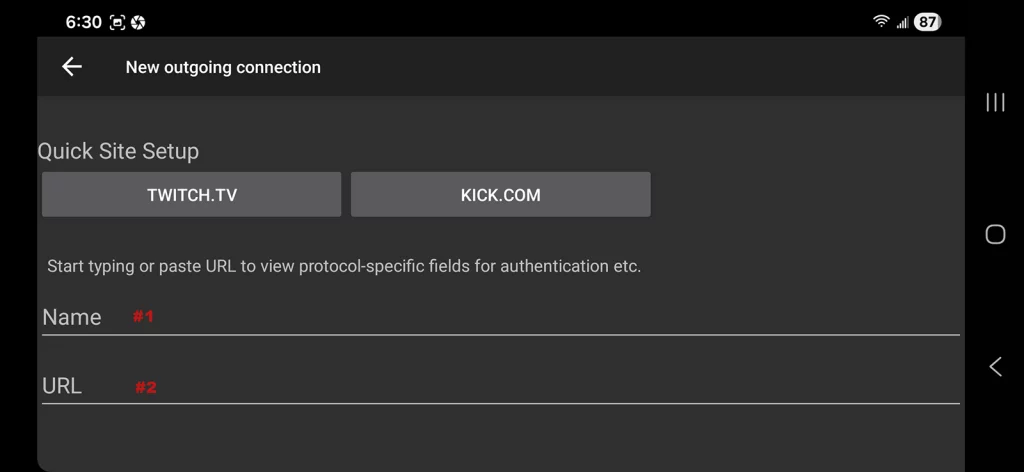
Step 2: Tap New connection
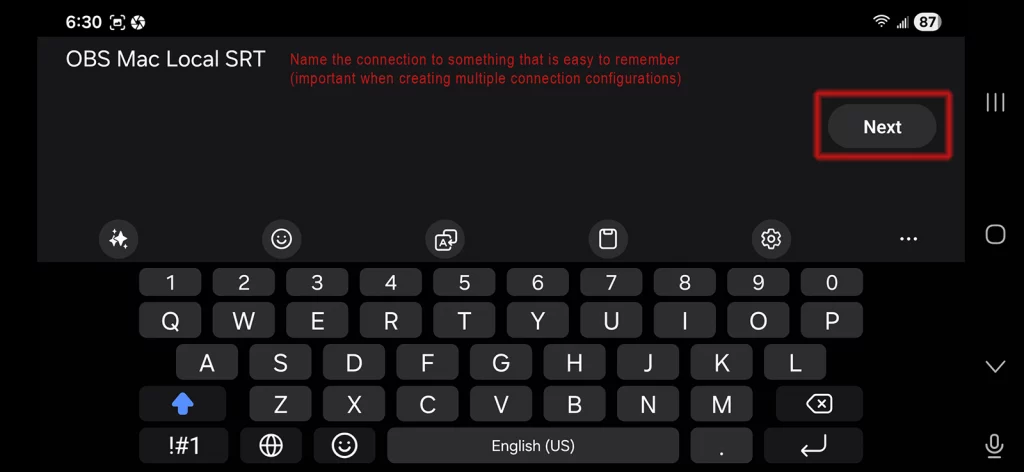
Step 3: Tap in the Name field (#1) and name this connection to something that is easy to remember (this is important when creating multiple connection configurations for different setups)
In this example, it is named for the SRT relay that will be running on OBS Mac. Tap the Next button.
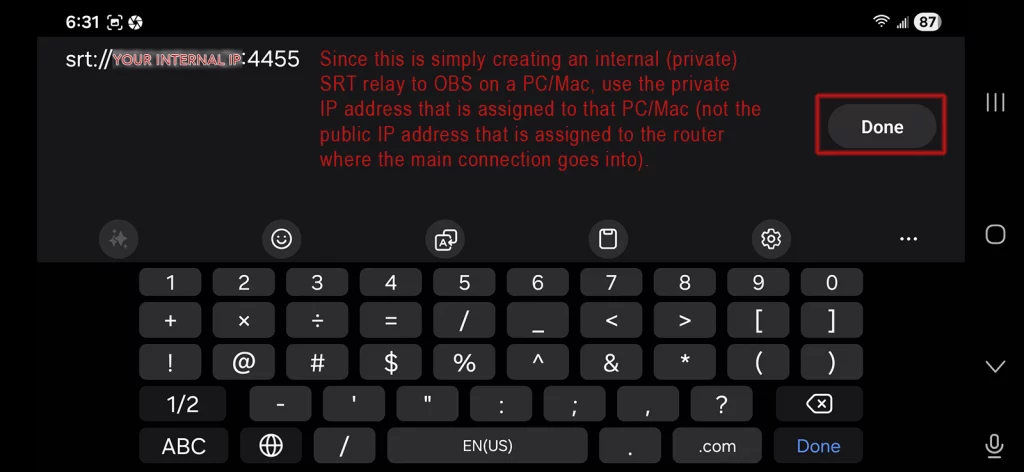
Type in the SRT URL (#2) srt://YOUR-IP:4455 and replace “YOUR-IP” with your local/internal/private IP address (see the following section if you are unsure on how to find this) and tap the Done button.
Windows PC
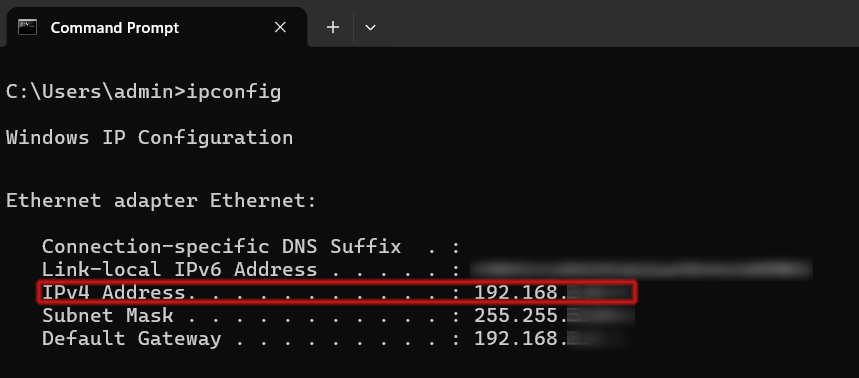
The fastest way to find out your computers IP address (which should be an internal one assigned by your router) is using the ipconfig command; you can open a command prompt on Windows (in the Search box on the taskbar, type in cmd and click on the “best match” from the search; it should be at the top as Command Prompt). This should open up a command prompt window like the following.
Type ipconfig and hit return. If your PC is on a wired connection, the IPv4 address will be listed under the “Ethernet adapter” configuration. If it is on a wireless connection, the IPv4 address will be listed under the “Wireless LAN adapter” configuration. This is the internal IP address that needs to be entered above.
Mac
The fastest way to find out your computers IP address (which should be an internal one assigned by your router) is using the ifconfig command via Terminal in Mac OS. The Terminal application is located in the Utilities folder inside of the Applications folder (from the menubar: Finder > Go > Utilities to open the Utilities folder and double-click on Terminal to run it).
The network connection (wired or wireless) for most setups will normally be on either en0 or en1; if you type in ifconfig by itself, it will list every possible interface (which can make it difficult to find the proper ethernet interface with the internal IP address). Therefore, first try “ifconfig en0” (and if there is no assigned IP address, try “ifconfig en1”). The IPv4 address will be the one after the inet.
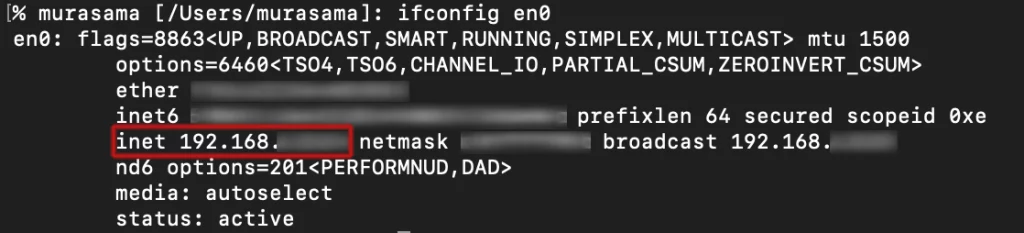
Note that DHCP assigned IP addresses can be dynamic (may change) though more often than not, the lease time is usually long enough where your internal devices will be assigned that same internal IP address most of the time.
Most internal/private IP addresses used by routers normally look like 192.168.x.x but could also use other private ranges like 10.x.x.x or 172.16.x.x). Alternatively, each device (used) can be setup with its own static IP address (for simplicity, this is not covered here); for my desktop systems, I normally assign them their own internal static IP address.
IRL Pro setup continuation from Step 3…
Step 4: The rest of the settings can be left alone. Tap the Save button to save this connection configuration. This completes the setup for IRL Pro.
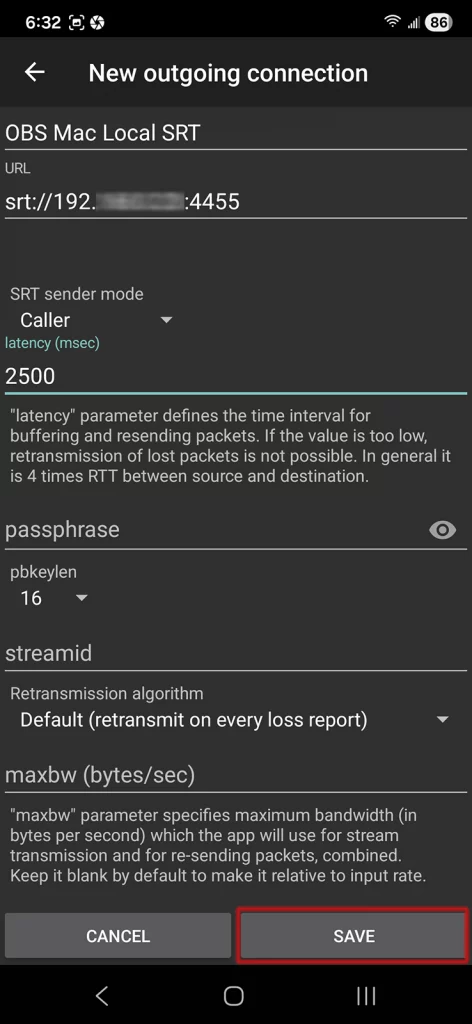
Moblin (iOS/iPadOS)
Step 1: Go into Settings (tap the gear icon on the upper right corner) and tap into Streams, and tap Create
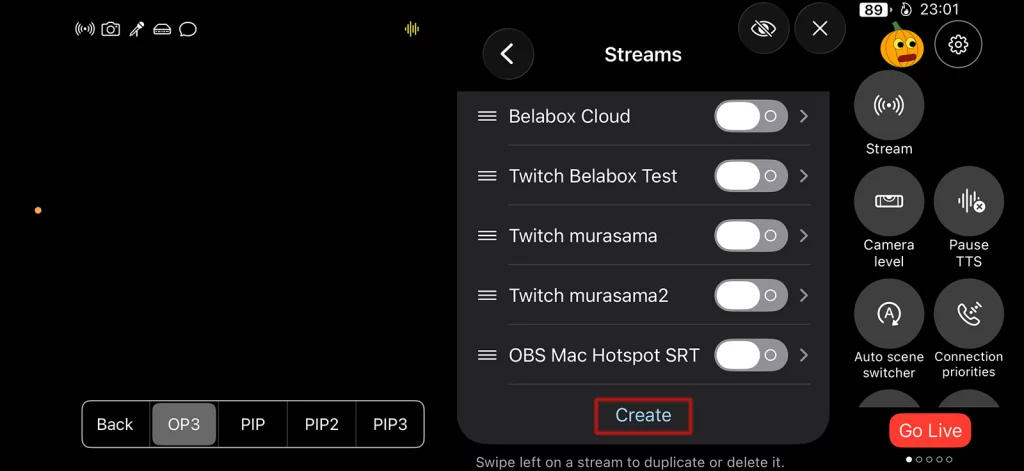
Step 2: Tap into the Name section and name this stream (#1) to something that is easy to remember (this is important when creating multiple stream configurations for different setups). Tap back out to the previous screen (below).
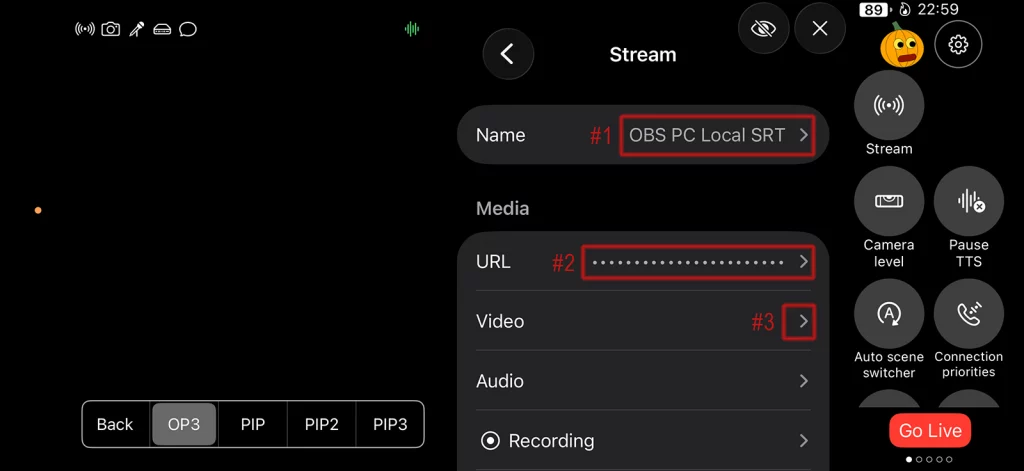
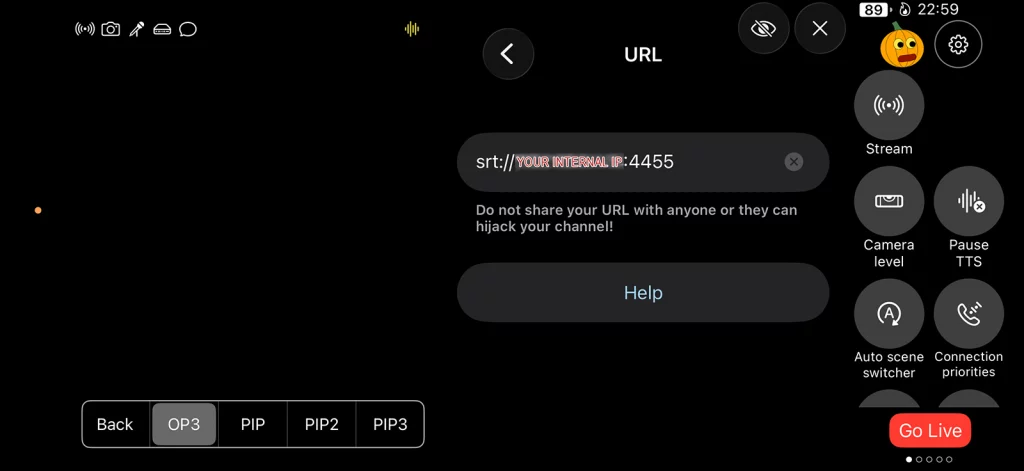
In this example, it is named for the SRT relay that will be running on OBS PC. Tap into the URL section and type in the SRT URL (#2) srt://YOUR-IP:4455 and replace “YOUR-IP” with your local/internal/private IP address. Refer to the section above to get your IP address for Windows or for Mac if you are unsure on how to find this.
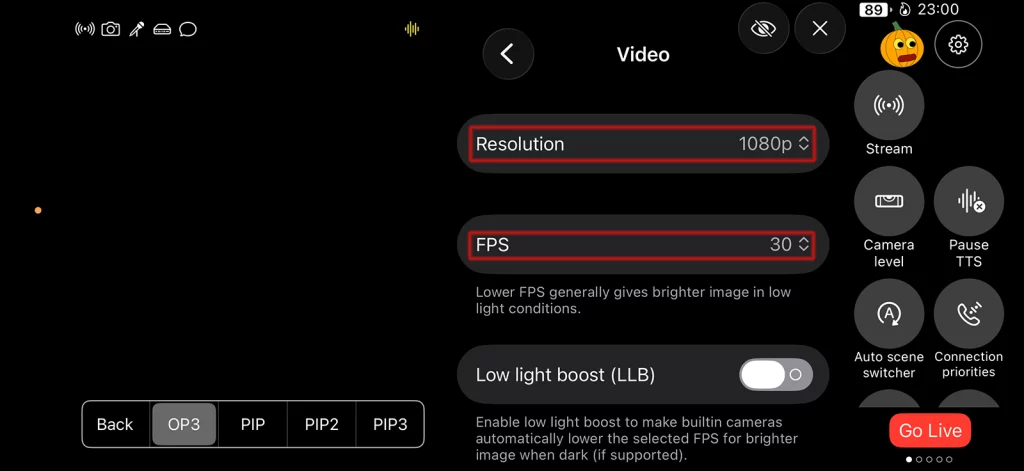
Step 3: Tap back out to the Stream configuration screen again and tap into the Video section. Double check to make sure the Resolution is 1080p and FPS is 30.
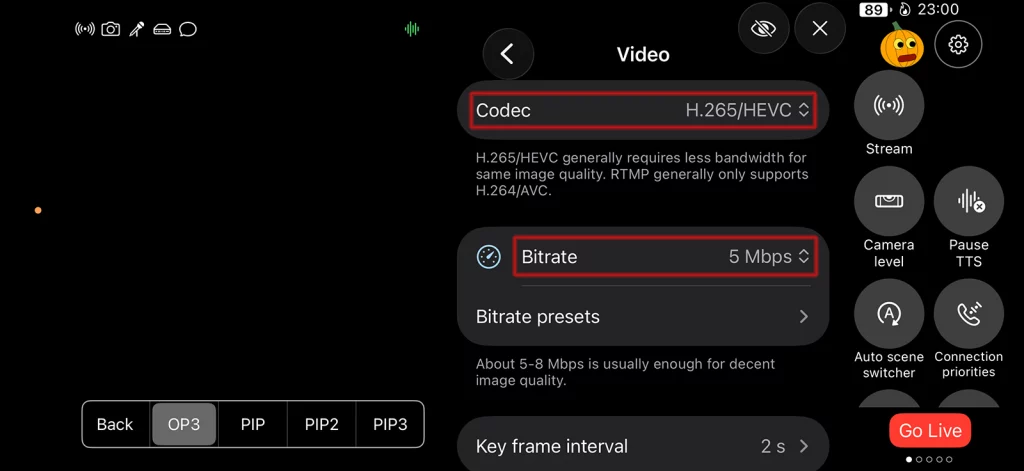
Scroll down and make sure the Codec is H.265/HEVC and Bitrate is 5 Mbps (at minimum).
Step 4: The rest of the other settings can be left as is. You can exit out of the Settings by tapping the Gear button. This completes the setup for Moblin.
Trying It Out
Test to see if you are able to stream to OBS by “starting broadcast” in IRL Pro or “going live” in Moblin.
IRL Pro:
Moblin: