
Belabox Cloud Guides (Overview)
NOTE: In order to help facilitate guides that will better translate into Japanese, I’m forking the IRL guide repositories created by Naginreed (to the following) to make edits in order to have that Japanese translation branch that will include the incorporation of critical security/privacy notes.
https://github.com/LordMurasama (this is only for archival purposes; the updated and translated guides will be hosted on this site)
Once I’ve completed revising and translated my forks, I’ll be converting the markdown and directly importing them as direct posts on this site.
What I was not aware of (my fault for not checking these guides last year) was that the Mac screenshots originally requested for Mac OBS and Mac NOALBS, were NEVER edited into the guides for the Mac. I included important Mac security information which were never fully conveyed to anyone who may have used the original guides.
This is why I am forking these, revising them, translating them, and then self-hosting them here. My Github repository is simply for maintaining a log of the commit history (especially for the Mac related guides).
Note: I do highly recommend streamers try to gain a base understanding before attempting to set this up because not doing so, means putting your privacy and personal information at risk if having to constantly rely on others to setup and then fix issues related to this streaming setup on their personal systems.
I therefore suggest watching through these 6 cliffcreates guides (playlist) in their listed (top to bottom) order before using these guides. Cliff has subtitle closed captions in several different languages. Click the gear button, Subtitles/CC, and select the language.
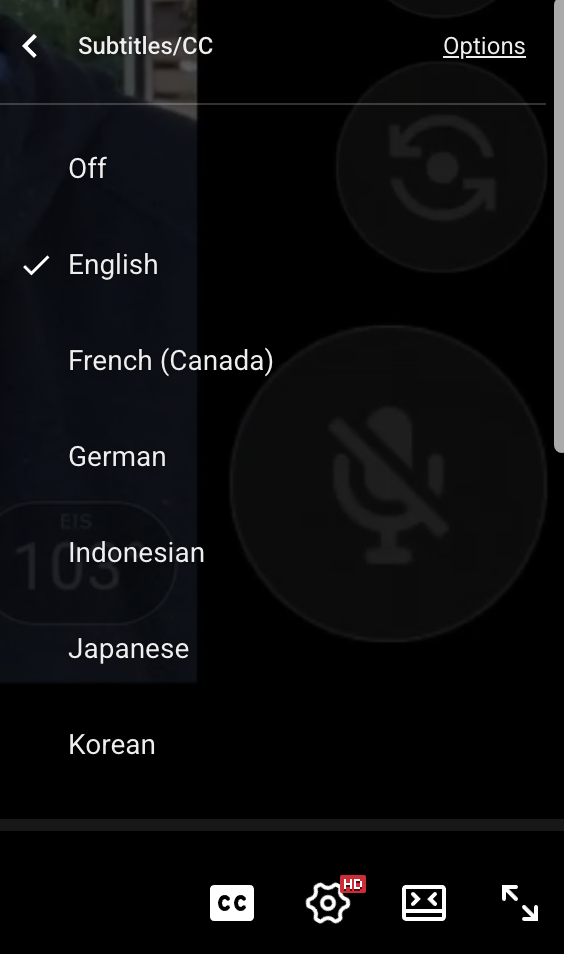
cliffcreates does speak a bit quickly so I suggest watching his videos at .75 speed. What is great about the overview is that you will learn about the different terminology as well as have actual hands on experience by setting up a local SRT relay to directly stream to OBS within your local Wi-Fi network via the last 3 “HOW TO” guides (each of these videos builds on each other as reinforcement).
The 6th video is NOT how most will be running their actual IRL setup (unless they really understand the security considerations with opening ports/port forwarding). However, trying to set it up and getting it working will make the Belabox Cloud portion a lot easier to understand as to where it fits into this whole setup (a Belabox Cloud relay avoids that whole potential security hole vector into your home network).
Furthermore, I personally recommend that streamers who wish to implement this configuration fully understand the entire setup (so they can handle any issues themselves if they arise) and because of these security/privacy concerns. Given the current trend of increasing irresponsibility and negligence in system and account security management, I will continue emphasizing this point.
Overview
Some folks call this a “OBS server” but all it really is OBS Studio running on your own personal computer (to act as an SRT/SRTLA relay) or using a paid service that will provision the entire service for you. SRT/SRTLA is a much more mobile friendly transmission protocol which takes into account the intermittent nature of mobile streaming (most streaming platforms do not yet support directly ingesting SRT which is why this round-a-bout system exists).
The average monthly fee for the basic paid “Cloud OBS” service is approximately $129. If you desire more advanced controls (such as adding custom overlays or increasing the number of scenes), the fee rises to $179 per month. Personally, I do not recommend using such hosting services unless you are streaming IRL full-time or at least dedicating a significant amount of time to it each month (though this is ultimately a decision each streamer must make for themselves). And while there are cheaper services, check to see if they have a terms of service and privacy policy (more on that below).
One of the main purposes for running a setup like this is to increase the quality of the viewing experience for viewers. With IRL (where signal can degrade the data rate/be lost completely), streaming platforms like Twitch (which were not designed for mobile IRL streaming), have only a limited backend system for these situations. This is especially true with disconnects (Twitch provides only a short period of time before the network connection needs to be re-established before it completely drops that streaming session where you end up losing all the viewers). For streamers on Twitch who are trying to become Partner, this can have a detrimental effect on the average concurrent viewer numbers (one of the metrics used). For low bitrate and disconnect situations, many who use this setup have the OBS scene switch to playback clips, previous VOD’s, or other created content (this flexibility is left to the content creator to decide on). More on this below (NOALBS).
As for setting up and running it yourself (as per these guides), this is an inexpensive option IF you already have the hardware (a capable Mac or PC desktop/laptop which preferably has at least an hardware NVENC encoder/decoder). The other crucial part is Belabox Cloud; a $10/month SRT relay service run by the developer of Belabox (a lightweight/inexpensive/secure encoder designed for IRL streaming). If you have the technical knowledge, you can setup and run it on supported boards. It should be noted that taking this route, you are your own technical support (and need to be able to troubleshoot things if something stops working). There are multiple “points of failure” in this setup which is why I usually recommend having a base level of technical understanding of the different parts of the setup as noted above (and more on that below). Unfortunately, this is where those who aren’t technical, end up allowing access to their personal system.
Note that there is an alternative free way to stream back to a personal computer running OBS Studio using an RTMP server (using nginx with the RTMP module) running on that same computer. This also requires a bit of technical knowledge for getting it installed. Similarly (as noted above, you can setup a direct SRT relay as a media source in OBS Studio). The biggest “issue” with this setup though is understanding the security considerations (at least two ports needs to be opened on your router/firewall and that port forwarded to your computer). It’s a potential security attack vector and normally not recommended unless you are technical enough to understand how to secure your network.
For one streamer, she originally used her MacBook Pro (M2 Pro; the integrated GPU handled hardware video encoding/decoding) for several months without any issues but recommended that she transition to a Windows based system for Streamer.bot (which is Windows only) as well as to separate her streaming setup from her computer with her personal information/files. We initially tried a really inexpensive (¥17,500) mini PC (the built-in GPU did have NVENC hardware encoder/decoder) but ended up burning out that hardware encoder/decoder in about a month because the system lacked sufficient cooling. There are beefier mini PC systems but at their price points, it makes more sense to just go with a form factor that supports a discrete GPU and can provide sufficient cooling.
To replace that, a mid-range tower PC with a discrete graphics processor (RTX 3070) was recommended (in late 2024); not a high end GPU but enough to handle HEVC/H264 video; the phone encodes the stream using HEVC which is relayed to Belabox Cloud, then relayed back to this PC running OBS Studio (which then streams to Restream.io in order to multicast to Twitch and YouTube). Final cost for that system was around ¥147,800 by an Osaka based PC builder (DarumaPC) that sells and supports direct on Amazon Japan (UFOREST and Pinkwan are the same company).
NOALBS (an open source command line scene switcher) is another piece of software that needs to be running; this monitors the data rate (supplied by a server process) for low bit rate/no data from a disconnection as well as provide automatic scene switching for OBS. Additionally, some basic commands (with access controls) can be set up which can be used from chat in order to remotely control OBS (like starting and stopping the stream, switching to some other scene).
As noted above, I’m repeating the recommendation of having a base technical understanding of how the different parts of this setup works before implementing it. IRL livestreaming is already a complex/demanding environment when it is just the phone and the mobile streaming app. A setup like the above has more configuration settings along with some security concerns to be aware of. NOALBS is an unsigned command line program for one; it’s BRB/privacy mode function also relies on an OBS scene switch off the main camera source – software can have bugs and one should not solely rely on this; a streamer should always take precaution with their phone/mic like covering the camera lens and muting the mic while doublechecking with their other “chat” phone (if they have a separate phone) or just simply ending the stream on the stream phone (which will auto switch OBS to the scene that is configured via NOALBS for a disconnect/no signal).
On the iPhone/iOS side, Moblin has some level of remote control of OBS while there are mobile apps like OBS Blade (which utilizes your OBS webhook and therefore requires the same opening of a port/port forwarding) that provide way more functionality. Like everything, there are pros/cons (thus the more one understands about how this all works, should provide enough of a level of understanding to decide which route to take).
Security/Privacy Note (IMPORTANT)
Because these streaming platforms have failed to keep up with the times technology wise (such as the mobile app and experience being terrible while the backend on the mobile streaming side still lacks an SRT ingest which make a lot more sense for those use cases), there are so many creators without the technical knowledge/skill having to implement workarounds (subscribing to or running their own self-hosted OBS relay). Some paid for services don’t even have a terms of services/privacy policies clearly outlined either (and that is an issue when it comes to how your personal information is handled).
Because of this, there are also a lot of cases of content creators allowing others (moderators and non-moderators with the technical skills/knowledge) to remote access into their systems using a screen sharing/remote desktop software like VNC, AnyDesk, Remote Desktop for Apple, Windows app (what was previous Remote Connection), etc to help set it up/adjust/fix things where there is absolutely zero accountability (this is completely different when doing this in a business environment). Some creators don’t even OBSERVE what is happening (or that mode may not even be enabled to begin with) where they have no idea what is happening. “Trust me bro is a giant leap of faith when so often, there are falling outs that take place”.
Most creators do not even have their PERSONAL data on that system separated from their streaming setup. Furthermore, the creators stream key (the same one that Twitch specifically warns NEVER to share) and OBS webhook information is also accessible. Finally, some also allow access to their streaming accounts (which is usually against the terms of service).
While it is up to the content creator to trust individuals to have access to this degree, consider how much personal information is on that system (documents, photos, web browsers that might be logged in to sites, other peoples personal information, etc). This is like giving someone the physical keys to your home and your login information to your bank. I will be blunt, it is irresponsible and bordering on negligence. All it takes is ONE bad actor to doxx and compromise ones personal information (and I have witnessed that happen multiple times before which is why I have this writeup, why I am adamant about privacy/security, and why I have strong thoughts about how setups like this are handled).
Anything to do with your streaming platform stream key is something that should be treated like they were your own physical keys or login credentials. The following is Twitch warning about not sharing this info (from their support FAQ).
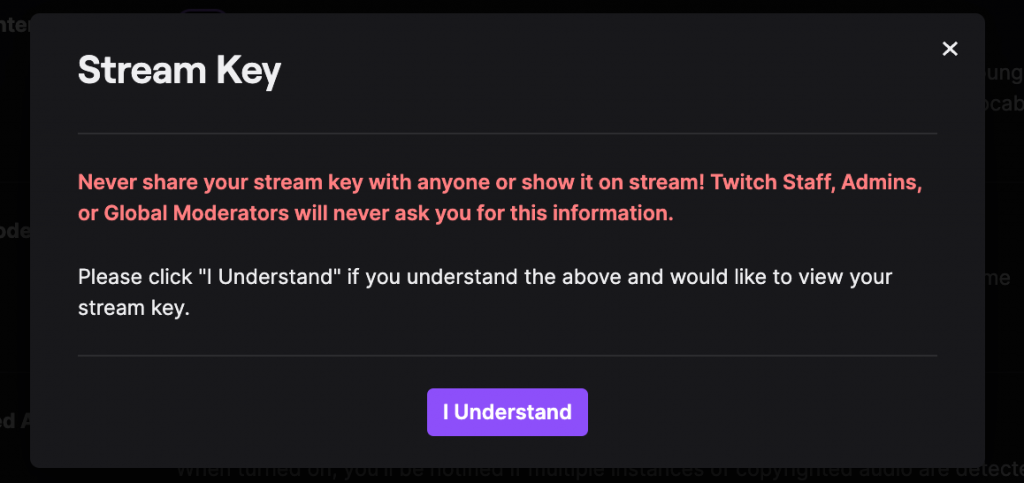
Basically, this is the streamers account with all of their associated personal information associated with it (especially true for partnered/monetized accounts). Sure, you can reset this key, but that is missing the point. The point is that while it is active, that stream key can be used to send potentially malicious content or to gain unauthorized access to your account (and all of that critical personal/private information can be compromised).
Allowing ones stream key to be configured on a system that they do not control therefore has some risks associated with it. Most professionally run services like IRLToolkit are fine because they will have a well defined terms of service AND privacy policy associated with them (where you as the consumer will have some recourse including being notified in the event of any breaches). And I highly do not recommend (even temporarily) using someone else’s system that is running OBS because of this (but that isn’t for me to decide – see below).
I’m not saying the bad actor is the one with the best intentions of trying to help and assist. The issue is that something could happen that is out of even that persons control. Case in point is remoting (desktop screen sharing and controlling) into someones system and not doing anything wrong. However, the owner inadvertently/unknowingly performs an action that allows their system to become compromised (malware or virus). They end up thinking the person who remoted in may have done something and blames them. I’ve seen people screen share and have no idea what was going on/being asked to perform things they didn’t understand (it’s no surprise that doxxing is such a common issue).
Why do I refuse to do this? It’s not about being unhelpful. It’s about not personally placing myself or the content creator into that type of position. It’s called being cautious/prudent/safe than sorry. However, all I can do is to offer this advise to the best of my ability with a writeup like this (knowing the difficulties with conveying the nuances of this to those who are non-technical). In the end, the final decision is what the streamer/content creator will need to make on their own (I’ve already stepped away as a moderator for one channel due to this) but if one ends up getting compromised down the road, do not say they weren’t warned of that potential consequence.
The Actual Guides
IMPORTANT: please make sure to read and understand the above first
- IRL Android and Mac Guide (English)
- IRL Android and Mac Guide (日本語)
- IRL iPhone and Windows Guide (English)
- IRL iPhone and Windows Guide (日本語)
- IRL iPhone and Mac Guide (English)
- IRL iPhone and Mac Guide (日本語)